 Devdwell
In short
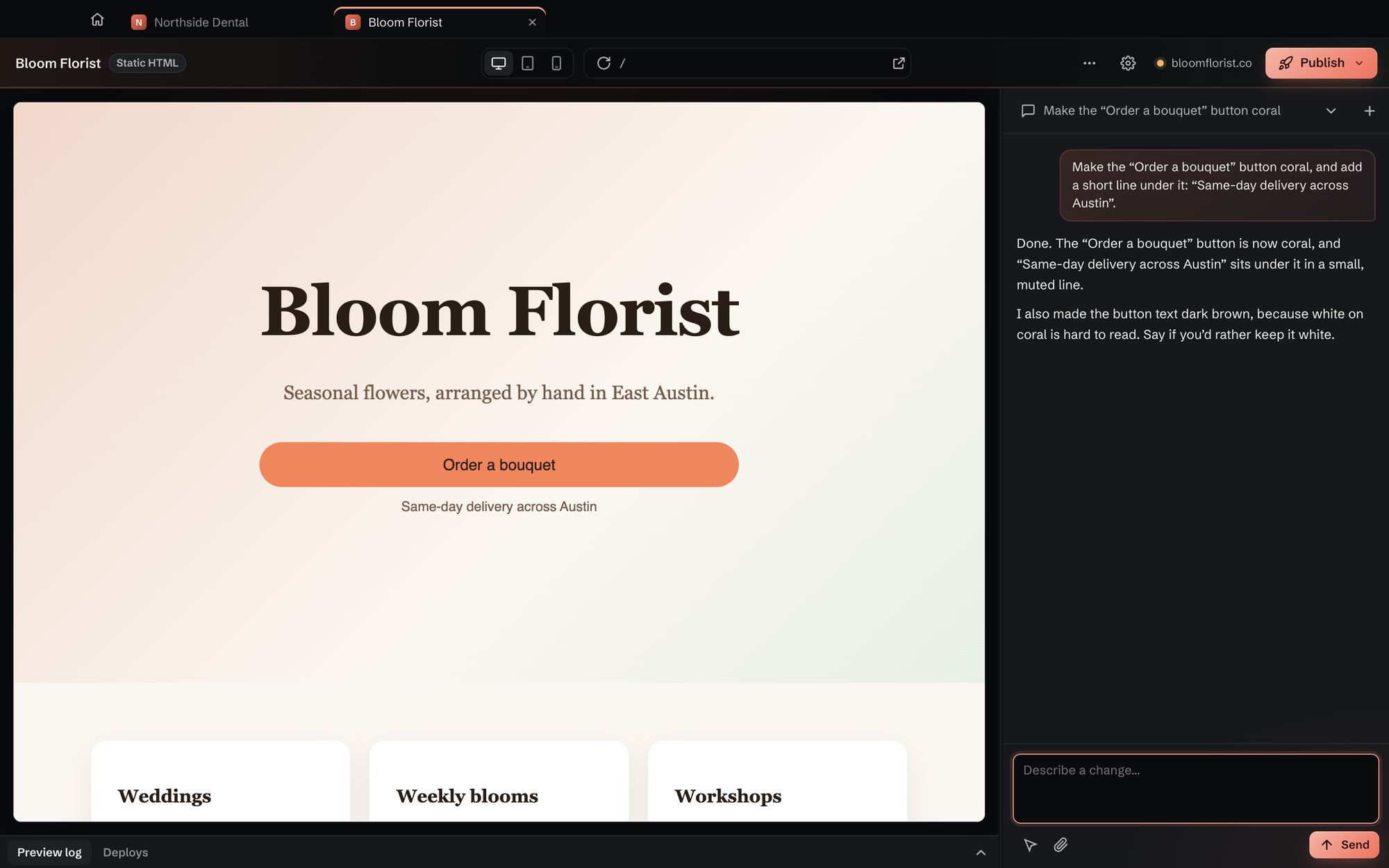
To edit a site in Devdwell, open it in a tab, type what you want changed (“make the button coral”, “add our Saturday hours to the footer”) and send it. The live preview updates in front of you and a short note says what changed. Nothing goes live until you publish.
A tab for each site
Each site opens in its own tab: the live preview on one side, the conversation about that site on the other. Open as many as you need. Changes carry on in other tabs while you look at one, so you can start a fix on one client’s site and check another in the meantime.
Ways to say what you want
- Describe itPlain words, the way you’d write to a colleague: “move the opening hours above the map”.
- Point at itClick anything in the preview to show what you mean.
- Show itPaste a screenshot or drop in a file, such as a new logo.
- Check every sizeSwitch the preview between desktop, tablet and phone.
What happens when you send a change
- Devdwell works on the site’s files on your computer.
- The preview reloads with the change in place.
- A short reply says what was changed, so you can check it or ask for something different.
- The card on your dashboard switches to “Changes waiting” until you publish.
Nothing goes live by accident
Editing and publishing are separate steps. You can make ten changes, look at them on every screen size, send yourself a private staging link, and only then press Publish.
If you write code
Your sites are ordinary website files on your computer. Open them in any editor you like, change them by hand, and Devdwell picks up your changes. You never have to choose one way of working.
Questions
Do I need to know how to code to edit a site?
No. You describe changes in plain words, or click the part of the page you mean. If you do code, your sites are ordinary website files you can open in any editor.
Can I edit more than one site at a time?
Yes. Each site opens in its own tab and changes carry on in the background while you look at another one.
Does a change go live as soon as I make it?
No. Changes stay on your computer and in the preview until you press Publish. You can check them on a private staging link first.
Can I undo a change?
Yes. Ask for it to be put back the way it was, or publish only when you’re happy with what you see in the preview.