 Devdwell
In short
To share one website with a client, open it in Devdwell, open sharing, enter the client’s email, pick a role and click Invite. With “Can edit” they can change the site and you publish it; with “Can edit and publish” they can also put it live. They only see that site, and you can change or remove their access at any time.
Choose the right role
- Can editBest for most clients. They can make their own changes; you check and publish.
- Can edit and publishFor a client or teammate you trust to put changes live themselves.
Steps
Open the site
Click the site’s card on your dashboard, or open it in the web app.
Open sharing
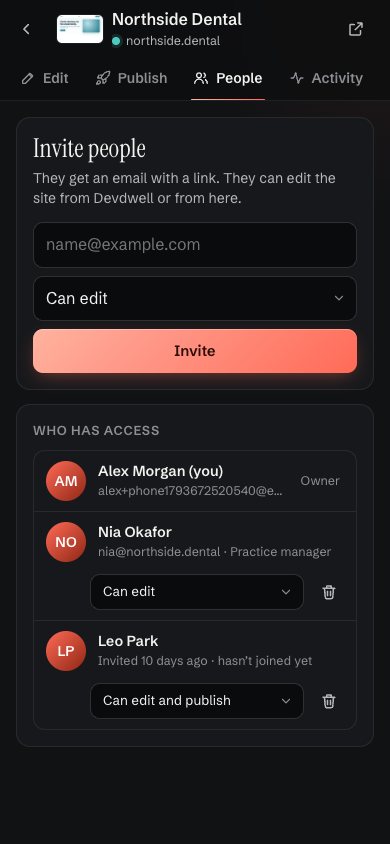
In the desktop app, open the site’s sharing. In the web app, go to the People tab.
Type their email
Enter the email address your client or teammate uses.
Choose what they can do
Pick “Can edit” if you’ll publish their changes, or “Can edit and publish” if they can put changes live themselves.
Send the invite
Click Invite. They get an email with a link, and they appear in the site’s list of people as invited until they join.
Watch it
Share a site
- 1Type their email
- 2Choose what they can do
- 3Send the invite
What your client sees
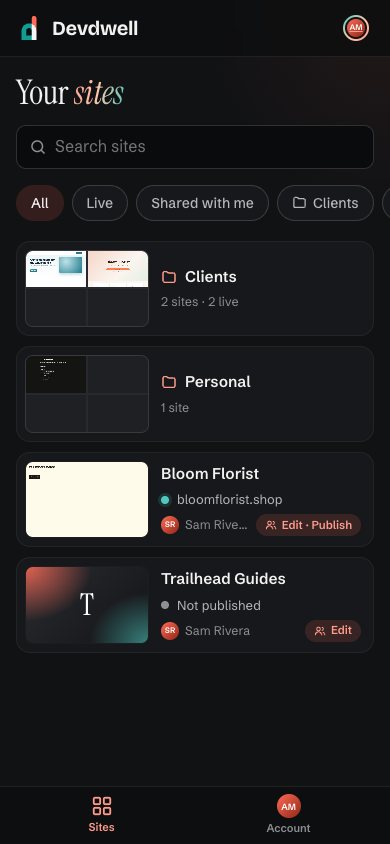
Your client gets an email with a link. They sign in with their email (there’s a six-digit code, no password) and the site appears under Shared with me. They can describe changes in the web app on their phone or computer, and see who shared the site and what they’re allowed to do.
Change or remove access
Open the site’s People list. Change someone’s role from the menu beside their name, or remove them. Pending invites show as not joined yet, so you can chase them or cancel them.
Questions
Will my client see my other sites?
No. People you invite see only the site you shared with them.
Does my client need to install anything?
No. They can use the web app in any browser, on their phone or computer.
Can I share a site with more than one person?
Yes. Invite as many people as you need, each with their own role.