 Devdwell
In short
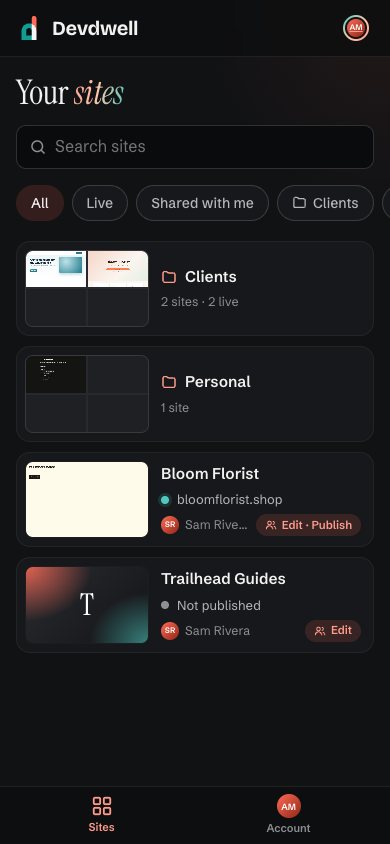
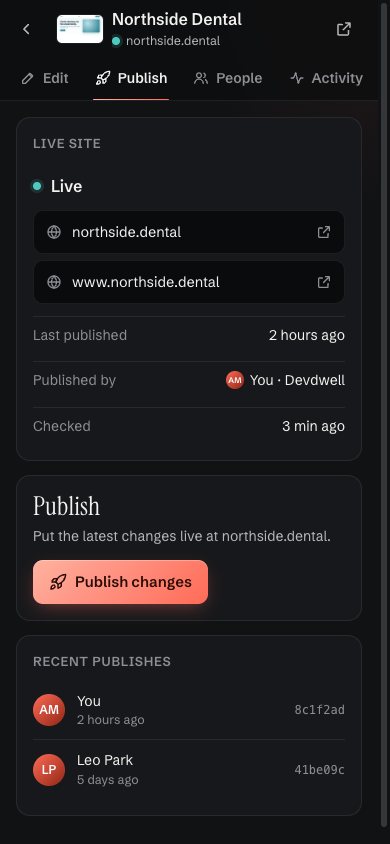
The Devdwell web app is at devdwell.com/app. It works in any modern browser and can be added to your phone’s home screen like an app. It shows the sites synced from your computers and lets you ask for changes, publish, invite people and see activity. Changes you ask for are made by one of your computers.
What you can do in the web app
- See every siteSearch, filter by live or shared, and open folders.
- Ask for a changeDescribe it and get a picture of the result when your computer has made it.
- PublishSee the live addresses and recent publishes, then publish changes.
- Invite peopleShare a site by email and choose their role.
- Check activityEvery publish, change and invite, with who and when.
- Your accountYour name and picture, shown to people you share sites with.
Signing in
Enter your email and Devdwell sends you a six-digit code. There’s no password to remember. The first time, you add your name so people you share sites with know who you are.
Add it to your home screen
On iPhone, open devdwell.com/app in Safari, tap Share, then Add to Home Screen. On Android, use Chrome’s menu to install it or add it to your home screen. It then opens full screen, like any other app.
What the web app doesn’t do
The web app doesn’t keep copies of your sites, and it can’t make a change on its own: one of your computers with Devdwell makes it. If you only use the web app, ask the owner of the site to make sure their computer has Devdwell open now and then.
Questions
Can I use it on my phone?
Yes. Open devdwell.com/app in your phone’s browser and sign in to see your synced sites and what’s live.
Is the web app free?
It comes with your Devdwell account. During early access there’s no price.
Do I need the desktop app to use the web app?
To make changes, one computer with the site needs Devdwell. People you share a site with can work entirely from the web app; the owner’s computer makes their changes.
Which browsers does it work in?
Any modern browser: Safari, Chrome, Edge and Firefox, on phones, tablets and computers.