 Devdwell
In short
You can change your website from your phone with the Devdwell web app. Open devdwell.com/app, choose the site, type what you want changed and send it. A computer of yours that has the site and Devdwell makes the change, then shows you a picture of the page. If it looks right, publish from the Publish tab.
Before you start
- You have a Devdwell account, and the site is on at least one of your computers in Devdwell (or on the computer of whoever shared it with you).
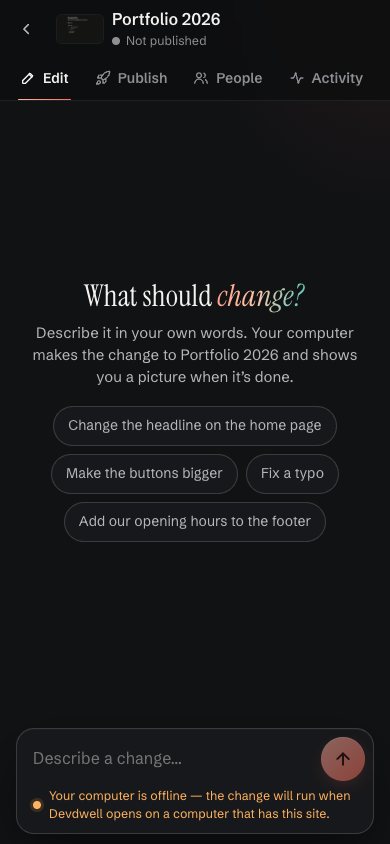
- That computer is on with Devdwell open. If it isn’t, your change waits and runs when it is.
Steps
Open the web app
On your phone, go to devdwell.com/app. Sign in with your email and the six-digit code we send you. Add it to your home screen if you like.
Pick the site
Tap the site in Your sites. Use search or the filters if you have a lot of them.
Describe the change
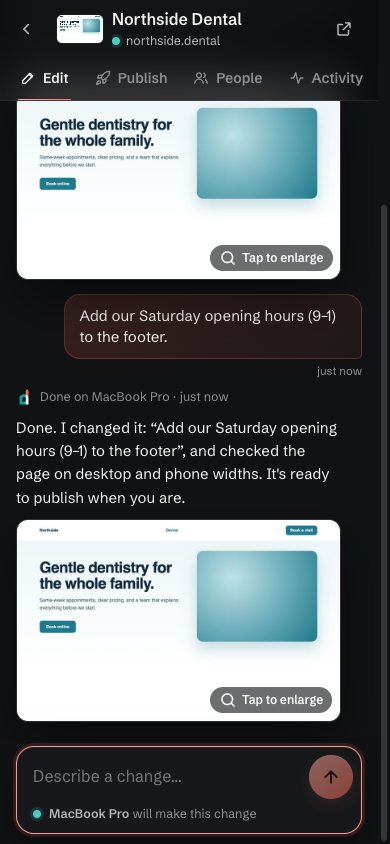
On the Edit tab, type what you want, for example “Add our Saturday opening hours (9–1) to the footer”, and send it. The app shows which computer will make it.
Check the result
When it’s done you get a short note and a picture of the updated page. Tap the picture to see it larger.
Publish
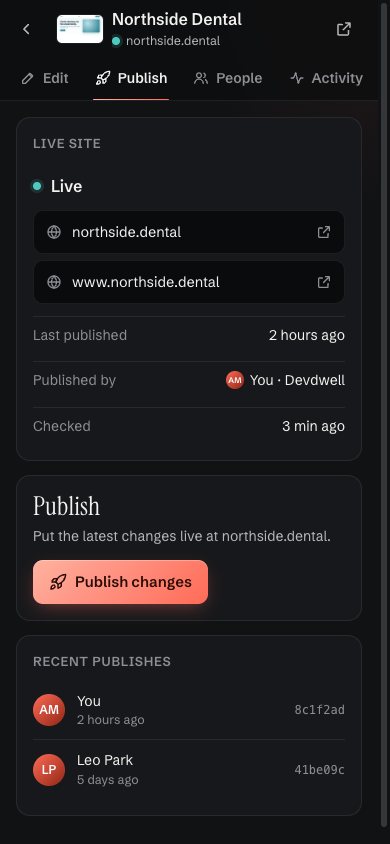
Go to the Publish tab and press Publish changes, then confirm. The live site updates.
Tips for describing a change on a small screen
- Name the page and the place: “on the contact page, under the map”.
- Give the exact words in quotes when wording matters.
- One change per message is easiest to check.
- Tap the picture of the result to see it larger before you publish.
Questions
Why does my computer need to be on?
Your sites live on your computers, so one of them makes the change. If none is on, the change waits until Devdwell opens on a computer that has the site.
Can I install the web app on my iPhone?
Yes. Open devdwell.com/app in Safari, tap Share, then Add to Home Screen.