 Devdwell
In short
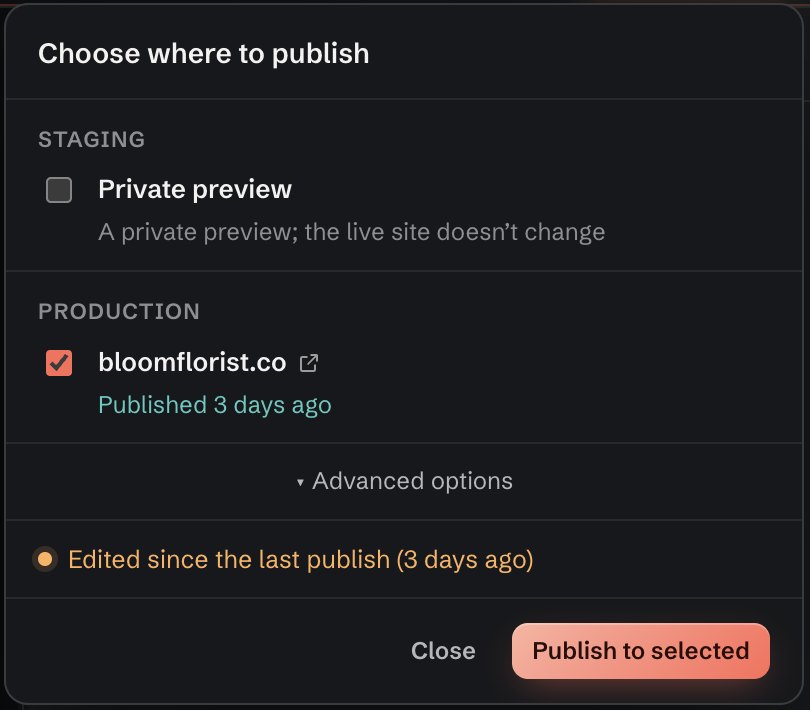
Publishing in Devdwell takes three clicks: press Publish, tick Staging, Production or both, then Publish to selected. Staging is a private preview link for checking changes without touching the live site. Production is the site’s real address. When it’s done, the card on your dashboard shows the site as live.
Staging and production
Staging is a private copy of the site at its own link. The live site doesn’t change. Use it to check a change on your phone, or send it to a client to approve.
Production is the real thing: the address people visit. Publishing there replaces what’s live.
You can publish to both at once, or to staging now and production after someone says yes. There is more on when to use each in staging vs production.
What you see while it publishes
The panel shows each step as it happens: preparing, building the site, uploading, going live. If something stops it, Devdwell says what went wrong in plain words and leaves the live site as it was.
Before you publish
- The panel warns you when the site has been edited since the last publish, and when.
- It shows when each address was last published, so you know what you’re replacing.
- You can open each address from the panel to look at what’s there now.
After you publish
The site’s card says Live, with its address and “published just now”. Everyone you’ve shared the site with sees the same. The web app’s Activity tab keeps a list of who published what, and when.
Publishing from your phone
People you’ve given “Can edit and publish” can publish from the web app too, and so can you: open the site, go to Publish, and confirm. See the web app.
Questions
What is a staging site?
A private copy of your site at its own link. You can look at changes there, or send the link to a client, without changing the live site.
Can I publish to staging and production at the same time?
Yes. Tick both in the publish panel and press Publish to selected.
What happens if a publish fails?
Devdwell tells you which step stopped and why, in plain words. The live site stays as it was.
Who can publish a shared site?
You, and anyone you’ve invited with “Can edit and publish”. People with “Can edit” can change the site, but you publish it.