 Devdwell
In short
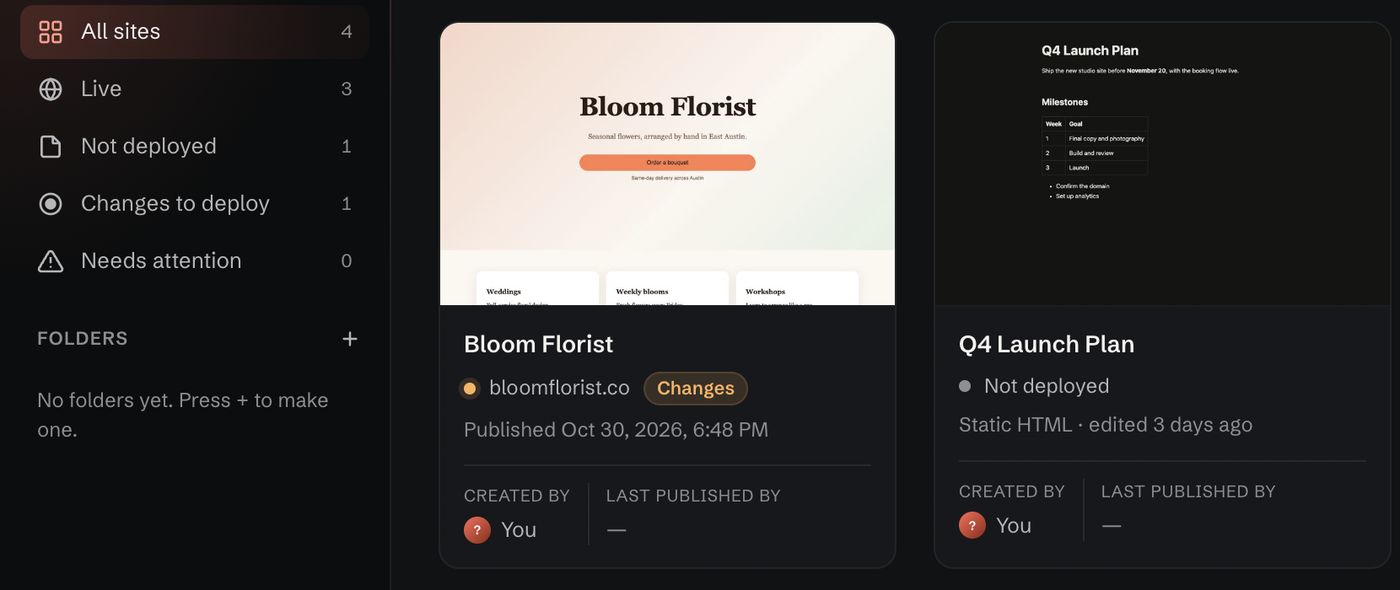
The simplest way to manage several websites is one dashboard that lists every site with its live status, folders to group them by client or project, and one routine for changes: edit, check on staging, publish. In Devdwell that means importing each site, putting it in a folder, and letting the dashboard tell you what’s live and what’s waiting.
Steps
Import every site
Drag each site’s folder or downloaded file onto Devdwell, one at a time. Each becomes a card on the dashboard.
Group them in folders
Make a folder per client or kind of site, such as Clients and Personal, and move each card into one.
Check the status of each
Use the sidebar counts: Live, Not published, Changes waiting and Needs attention. Click a count to see only those sites.
Open the sites you’re changing in tabs
Click a card to open it in its own tab. Describe changes, or click the part of the page you mean, and switch between tabs while changes carry on.
Publish through staging
Publish to a private staging link first, check it, then publish to production.
Share each site with the right people
Invite clients and teammates to the sites they work on only, with “Can edit” or “Can edit and publish”.
A weekly routine that works
- Monday: look at the sidebar counts. Anything under “Changes waiting” is work that never went live; anything under “Needs attention” is broken and the card says why.
- Through the week: open each site you’re changing in its own tab and move several jobs along at once.
- Before publishing: send yourself or the client the staging link.
- When a job ends: remove people from the sites they no longer need.
Why one place matters
When sites live in different folders, hosting accounts and spreadsheets, the cost isn’t the changes; it’s the remembering. One dashboard that knows what’s live removes the “is this the version that’s up?” question entirely. We wrote more about this in how to manage multiple websites in one place.
Questions
How many websites can I manage in Devdwell?
Devdwell is built for people with many sites. Add every site you look after; folders and filters keep the dashboard tidy.
Can I manage sites that were built in different ways?
Yes, as long as you have the site as files. Each one gets a card with its status, and opens in a tab like any other.